Document Indexing
elDoc File Management supports structured Document Indexing, allowing users to assign and maintain predefined indexing values for files.
Document Indexing is based on Indexing Profiles configured by a system administrator. An Indexing Profile defines which Indexing Fields are available for documents stored in a particular folder, including their data types and other processing settings.
Before Document Indexing can be used, the corresponding Indexing Fields and Indexing Profiles must be configured and assigned to File Management folders.
For configuration details, see: Admin Guide → AI File Management Configuration → Document Indexing Configuration
Indexing Profiles and Folders
An Indexing Profile can be assigned to a folder in File Management.
Once assigned, the Indexing Fields defined by that profile become available for files stored in the folder.
For example, a Bank Statement folder can use an Indexing Profile containing the following fields:
Bank
Account number
Date
Balance
Currency
Transaction Type
Files stored in that folder can then be indexed using the same consistent structured data model.
Indexing values can be entered or updated manually, populated by AI Indexing when AI functionality is enabled, or read and written through the elDoc API.
Viewing Indexing Fields
Indexing Fields associated with a file are available directly from File Management.
elDoc provides two primary ways to work with document indexes:
through the Details panel;
through the split-view Indexing interface.
Both interfaces operate on the same indexing data associated with the selected file.
Indexing Through the Details Panel
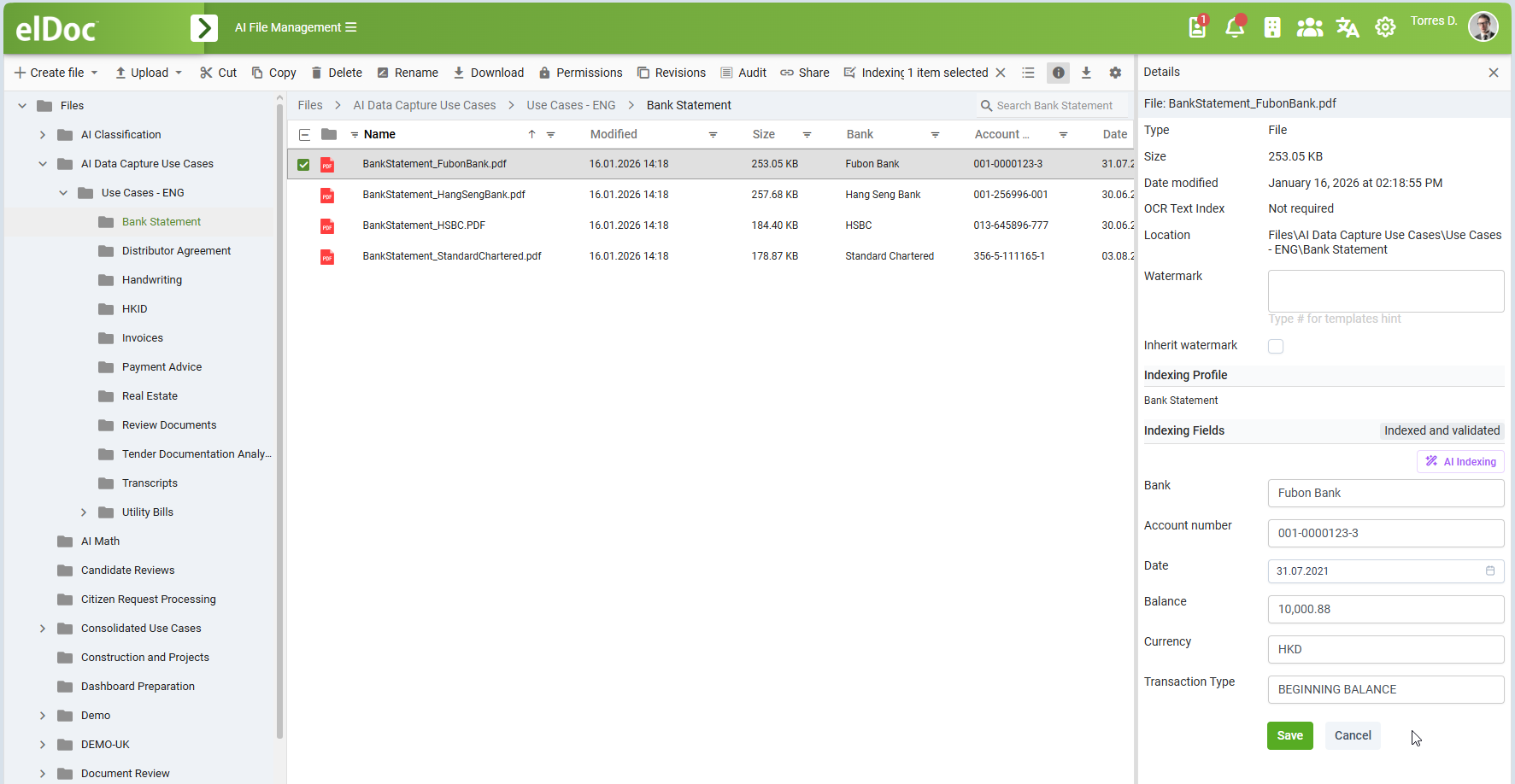
Select a file and open the Details panel.
When the file belongs to a folder with an assigned Indexing Profile, the panel displays:
the assigned Indexing Profile;
the available Indexing Fields;
the current value of each field;
the current indexing status;
the AI Indexing action when AI functionality is enabled.
For example, a bank statement can display:
Indexing Profile
Bank Statement

Indexing Fields
Bank              Fubon Bank
Account number    001-0000123-3
Date              31.07.2021
Balance           10,000.88
Currency          HKD
Transaction Type  BEGINNING BALANCE
Index values can be reviewed and edited directly in the Details panel.
After making changes, click Save to store the updated indexing values.
Indexing Status
The Indexing Fields section displays the current indexing status for the file.
For example:
Indexed and validated
indicates that indexing values have been populated and validated.
The status provides a quick indication of the current state of structured indexing data associated with the document.
Split-View Indexing
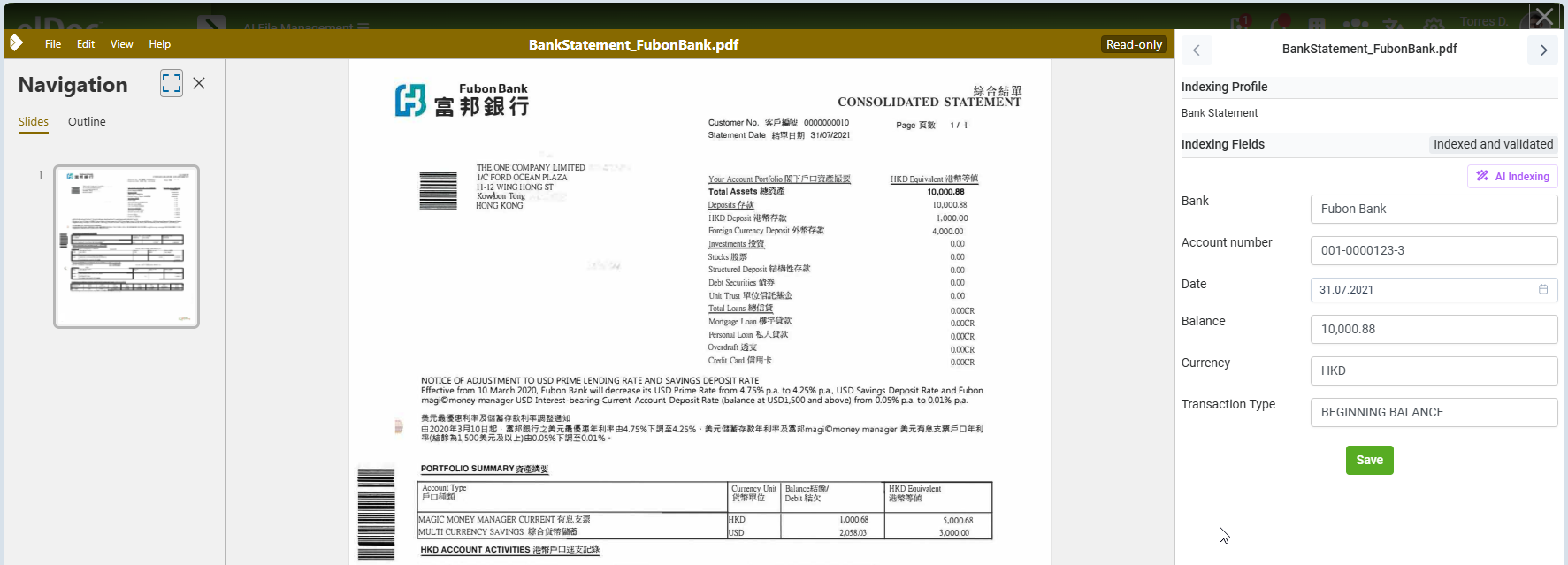
elDoc also provides a dedicated split-view Indexing interface.
This view combines the document preview and Indexing Fields in a single workspace, allowing users to review the document while entering or validating indexing values.
To open the split-view Indexing interface:
select the required file in File Management;
click Indexing in the File Management toolbar;
the document opens together with its Indexing Profile and Indexing Fields.
The document is displayed on one side of the interface, while the corresponding Indexing Fields are displayed on the other.
This makes it easier to compare values directly with the source document during manual indexing or validation.
For example, while reviewing a bank statement, the user can simultaneously verify:
Bank
Account number
Date
Balance
Currency
Transaction Type
against the document content displayed in the preview.
After reviewing or modifying the values, click Save.
Manual Indexing
Indexing values can be entered manually.
Manual indexing is useful when:
structured values need to be entered by a user;
existing values need to be corrected;
AI-extracted values need to be reviewed;
documents require additional validation;
indexing information cannot be reliably extracted automatically.
The field input controls correspond to the data types configured for the Indexing Fields.
For example:
text fields accept textual values;
date fields provide date input;
numeric fields accept integer or fractional values;
other field types provide the corresponding input control.
This preserves the structured data types defined in the Indexing Profile.
AI Indexing
When AI functionality is enabled, elDoc provides AI Indexing for automated extraction of structured document data.
The AI Indexing action is available directly in the Indexing Fields section.
AI Indexing analyzes the document and extracts values for the Indexing Fields defined by the assigned Indexing Profile.
For example, for a Bank Statement profile, AI Indexing can extract values such as, but not limited to:
Bank
Account number
Date
Balance
Currency
Transaction TypeThe AI processing uses the Indexing Profile, Indexing Field definitions, field data types, and configured AI extraction context to identify the required values from the document.
Extracted values are populated into the corresponding Indexing Fields and can then be reviewed and saved.
This combines automated AI-based document understanding with structured enterprise indexing.
AI Indexing and Validation
AI Indexing does not prevent users from reviewing or modifying extracted values.
The normal processing flow can therefore be:
Document
   ↓
AI Indexing
   ↓
Structured Indexing Values
   ↓
User Review / Validation
   ↓
Saved Indexing Data
This is particularly useful for business-critical document processing where AI automation is combined with human validation.
Indexing Values in the File List
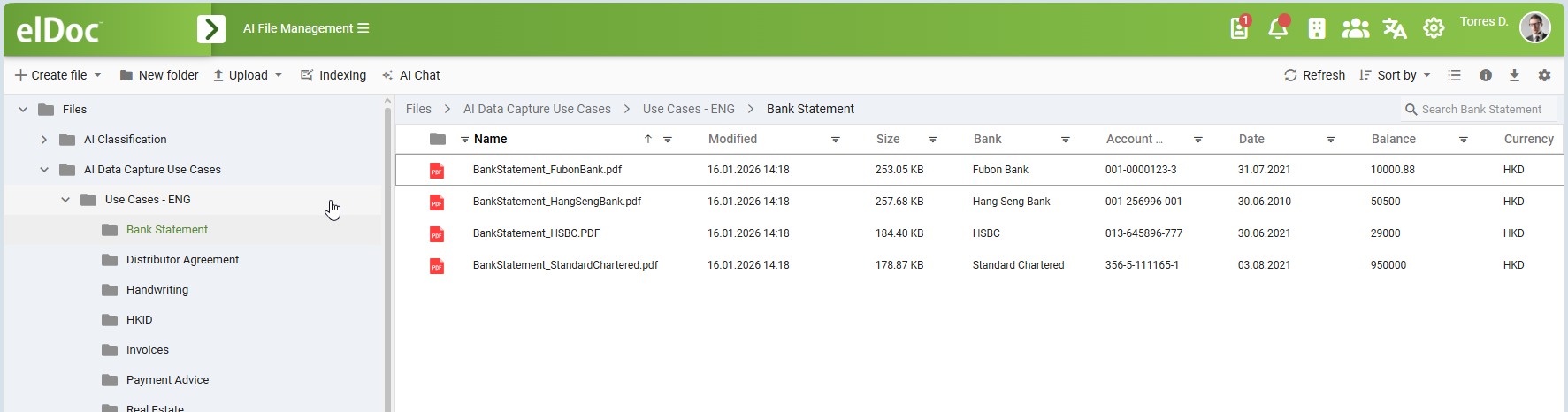
Indexing Fields can also be displayed as columns in File Management.
For example, a folder containing bank statements can display columns such as:
Bank
Account number
Date
Balance
Currency
together with standard File Management information such as:
Name
Modified
Size
This allows users to review structured indexing data directly from the file list without opening each document.
For example:
Name                                  Bank                Account number   Date        Balance      Currency
BankStatement_FubonBank.pdf           Fubon Bank          001-0000123-3    31.07.2021  10000.88     HKD
BankStatement_HangSengBank.pdf        Hang Seng Bank      001-256996-001   30.06.2010  50500        HKD
BankStatement_HSBC.PDF                HSBC                013-645896-777   30.06.2021  29000        HKD
This provides a structured document view in addition to the traditional file-and-folder representation.
Working with Indexed Documents
Once indexing values are assigned to documents, they become part of the structured information associated with those files.
Users can use indexing values to:
identify documents;
review important document attributes;
work with structured business data;
display relevant information directly in File Management;
support search and retrieval;
provide structured input for integrations and automated processes;
use indexed information through elDoc APIs.
Document Indexing therefore provides a bridge between traditional document storage and structured enterprise data.
API Access
Document Indexing is also available through the elDoc API.
Indexing data can be accessed programmatically for both read and write operations.
This allows external systems, integrations, and automated processes to:
retrieve Indexing Profiles and Indexing Fields associated with documents;
read existing indexing values;
create or update indexing values;
synchronize structured document data with external systems;
use indexing values in business-process automation.
API access makes Document Indexing suitable not only for interactive File Management use, but also for system-to-system integration and automated processing scenarios.
Access through the API remains subject to the corresponding elDoc authentication and authorization rules.
Example Workflow
A typical Document Indexing workflow can be represented as:
Administrator configures:
Indexing Fields
   ↓
Indexing Profile
   ↓
Folder assignment

User uploads or stores a document
   ↓
Indexing Profile becomes available
   ↓
Indexing values are populated:
   ├── manually
   ├── through AI Indexing
   └── through API
   ↓
Values are reviewed and validated
   ↓
Structured indexing data is stored with the document
For example:
Folder:
Bank Statement

Assigned Indexing Profile:
Bank Statement

Fields:
Bank
Account number
Date
Balance
Currency
Transaction Type
When a bank statement is added to the folder, the same structured fields are immediately available for that document.
The values can then be entered manually, extracted using AI Indexing, or populated through the API.
Summary
Document Indexing provides structured document data directly within elDoc File Management.
Once Indexing Fields and Indexing Profiles have been configured by an administrator and assigned to folders, users can:
view document Indexing Fields;
enter and edit indexing values manually;
work with indexes through the Details panel;
use the split-view Indexing interface while viewing the source document;
run AI Indexing when AI functionality is enabled;
review and validate AI-extracted values;
view indexing values directly as File Management columns;
access and update indexing data through the elDoc API.
By combining structured Indexing Profiles, manual indexing, AI-powered extraction, File Management integration, and API access, elDoc enables documents to be managed not only as files, but also as structured enterprise information.
Last modified: August 25, 2026