Sharing Files and Folders
elDoc File Management provides built-in sharing functionality that allows files and folders to be shared securely with other users by link or by email.
Sharing can be configured with granular permissions and optional security controls such as OTP verification, password protection, expiration date, view mode selection, and watermarking.
This functionality makes it possible to share content externally or internally while maintaining controlled access to the shared file or folder.
Opening the Share Settings
To share a file or folder, open the Share settings panel for the selected object.
The settings panel displays the object being shared and allows the share to be configured using one of two methods:
Link
Email
In both cases, the share can be created with selected permissions and, when required, with additional access restrictions.
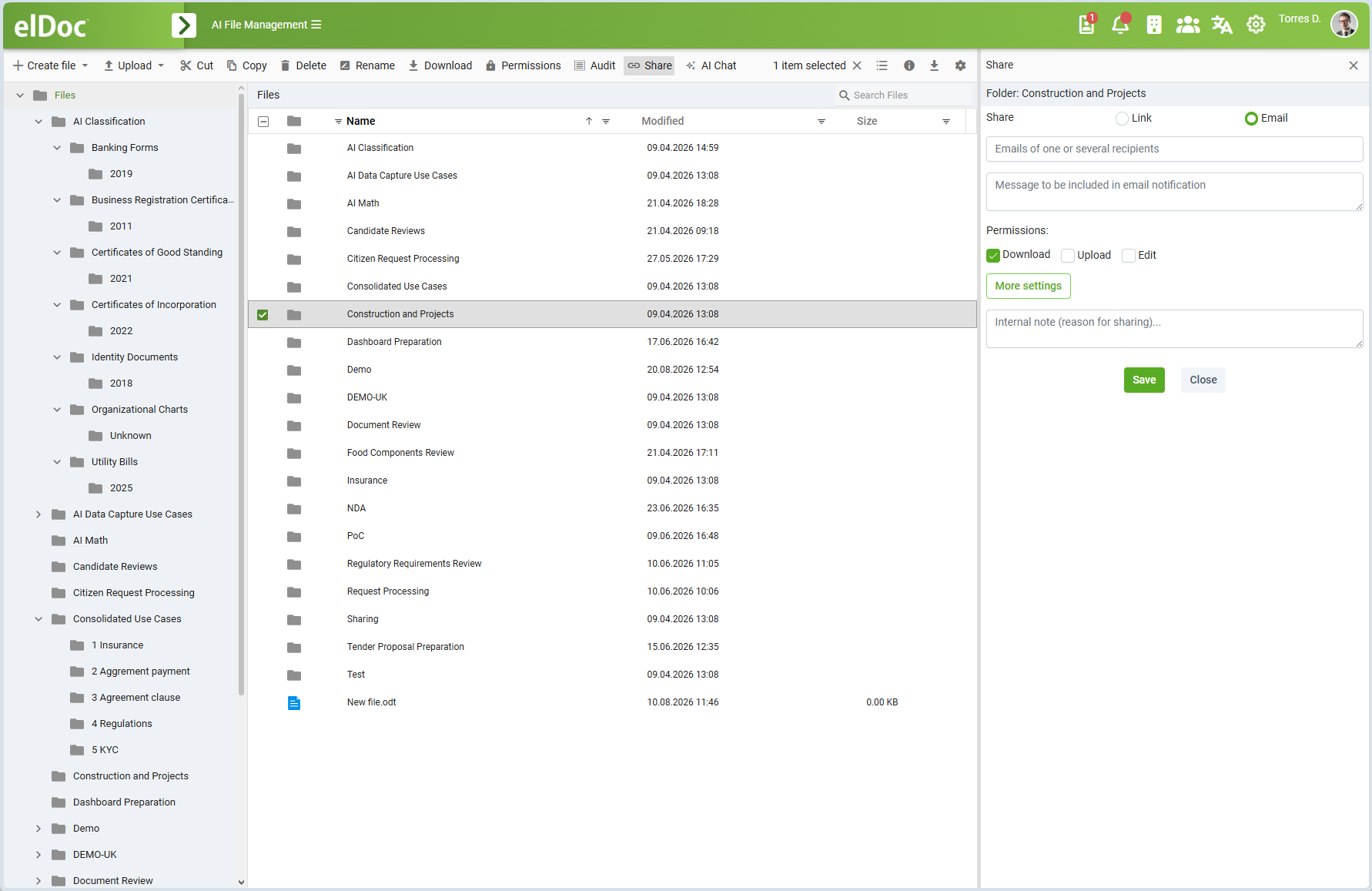
Share Methods
Link
The Link option creates a shareable link to the selected file or folder.
This mode is useful when the sender wants to generate a link and distribute it separately, for example through chat, another communication channel, or internal workflow.
The Email option sends the share directly by email.
This mode is useful when the sender wants elDoc to notify one or more recipients and include a message together with the shared access.
Basic Sharing Options
Both Link and Email modes support a simplified sharing form.
In the basic form, the user can configure:
the sharing method (Link or Email);
the permissions granted to the recipient;
an optional internal note describing the reason for sharing.
In Email mode, the basic form also includes:
Emails of one or several recipients
Message to be included in email notification
The More settings button expands the sharing form and displays advanced access settings.
Email Recipients and Notification Message
When the Email sharing method is selected, the sender can specify one or more recipient email addresses in the Emails of one or several recipients field.
The sender can also provide a custom message in the Message to be included in email notification field. This message is included in the email notification sent to the recipients.
This makes it possible to distribute the shared content together with context or instructions.
Advanced Sharing Settings
Selecting More settings expands the settings panel and reveals advanced access-control options.
Depending on the selected sharing method, advanced settings can include:
OTP
Password
Expiration date
View mode
Watermark
detailed Permissions
Internal note
These settings provide additional security and control over how the shared content is accessed.
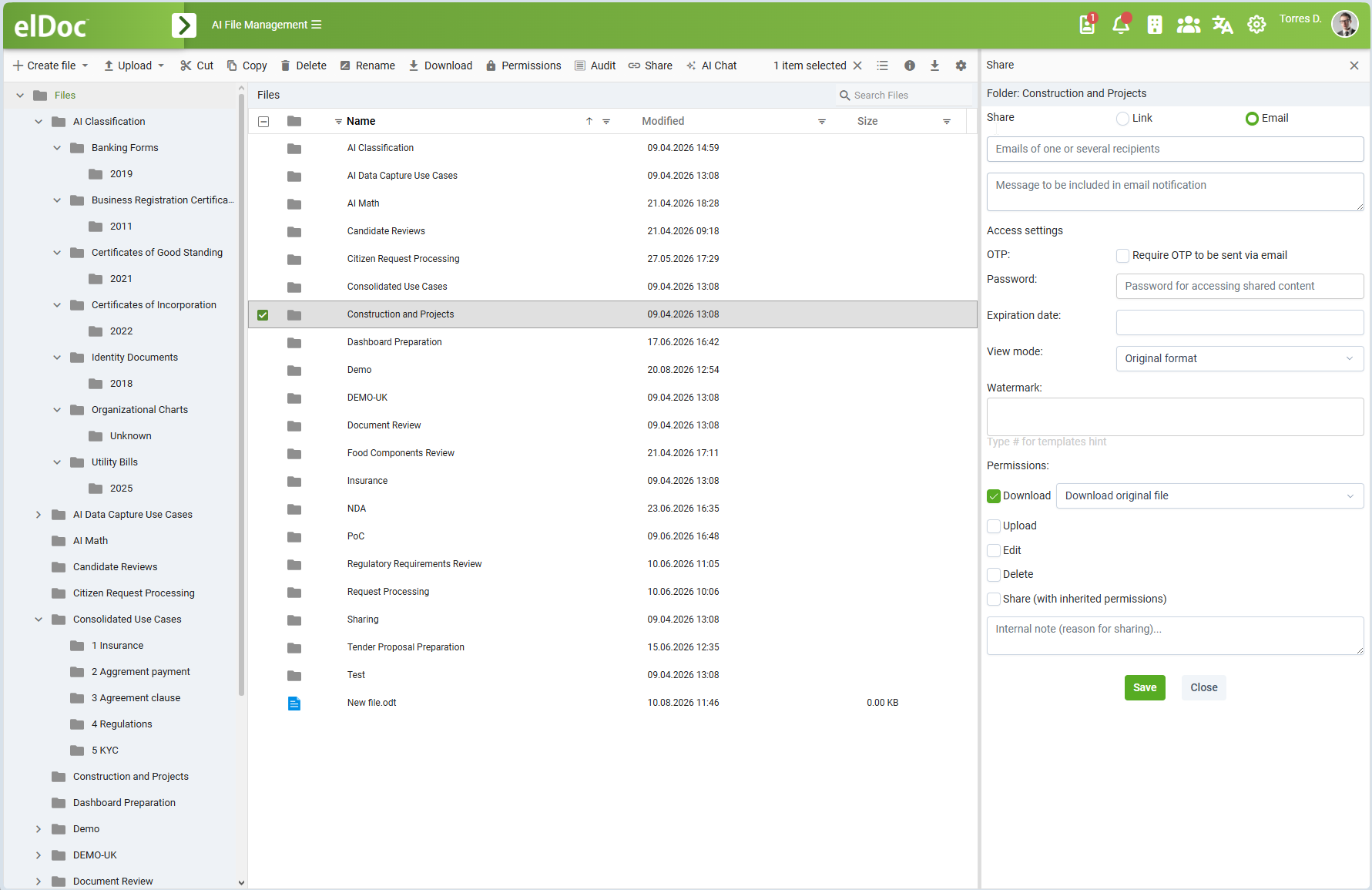
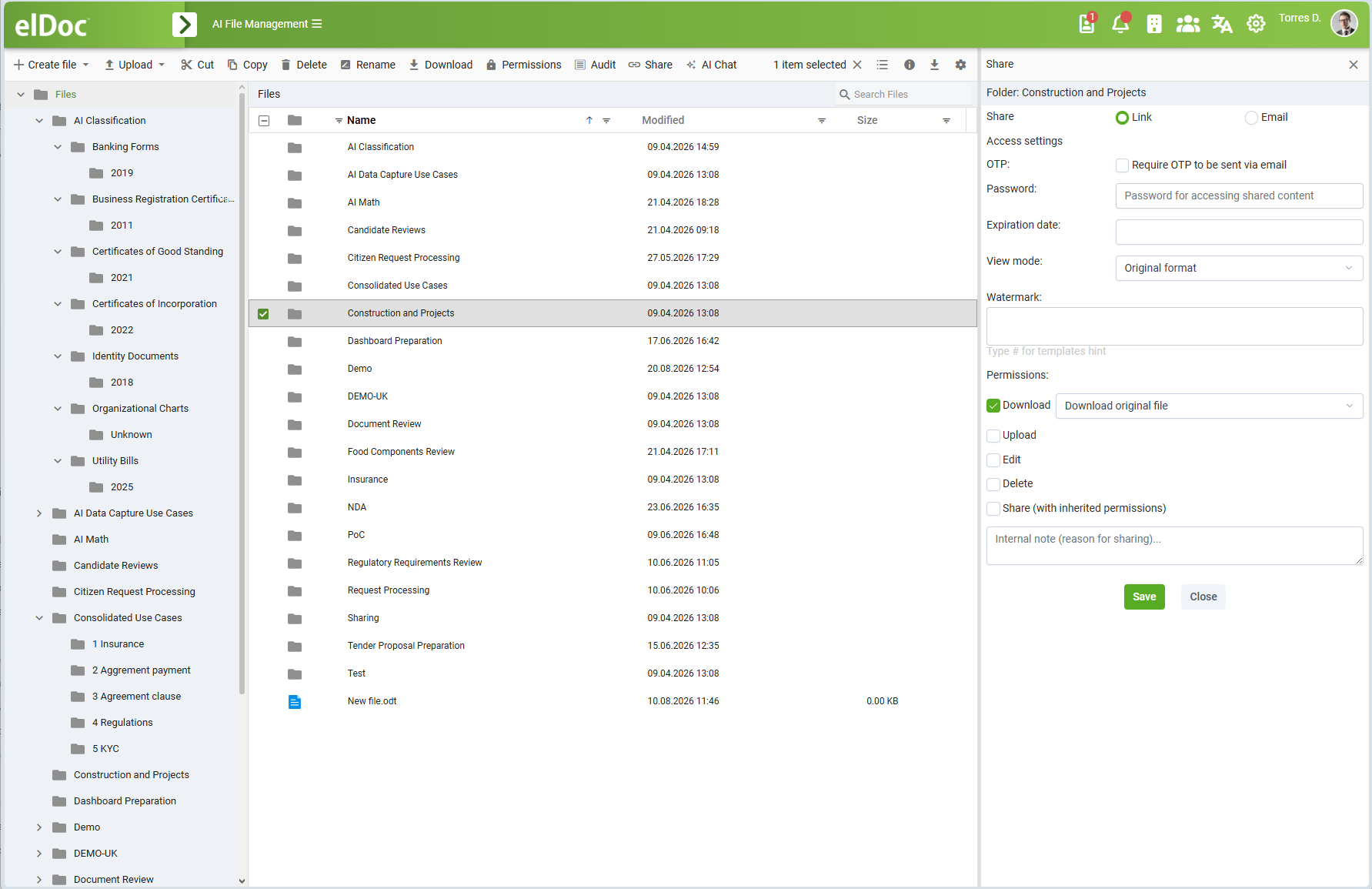
Access Settings
OTP
The OTP option enables one-time-password verification for access to the shared content.
When enabled, the option appears as:
Require OTP to be sent via email
This adds an additional authentication step for the recipient.
In Link sharing mode, OTP-protected sharing can also include the field:
Emails of one or several recipients
This allows the share to be associated with one or more email addresses. The interface notes that this requires entering email as login when several emails are provided.
This makes it possible to restrict access to users who can receive the OTP through the specified email address.
Password
The Password field allows a password to be defined for the shared content.
A recipient must provide this password in order to access the share.
Password protection can be used independently or together with OTP, depending on the desired level of protection.
Expiration Date
The Expiration date field defines the date until which the share remains valid.
After the configured date, the share is no longer accessible.
This is useful when access must be limited to a specific time period.
View Mode
The View mode setting controls how the shared content is presented to the recipient.
The available options are:
Original format
PDF
Pages as images
Original format
The shared content is made available in its original format.
The shared content is presented as PDF.
This is useful when a more controlled and consistent viewing format is required.
Pages as images
The shared content is rendered as images of document pages.
This mode is useful when a higher level of visual control is required for viewing shared content.
Watermark
The Watermark field allows watermark text to be configured for the shared content.
The interface also indicates support for watermark templates using the hint:
Type # for templates hint
This means watermark content can be defined directly and can also use available template placeholders where supported.
Watermarking can be used to visually mark shared content for security, traceability, or confidentiality purposes.
Sharing Permissions
The sharing settings panel allows permissions to be granted independently for different operations.
The available permissions shown in the sharing panel include:
Download
Upload
Edit
Delete
Share (with inherited permissions)
Each permission can be enabled or disabled separately.
This allows a shared file or folder to be exposed with only the operations that are required.
For example, a recipient can be allowed to download a document but not upload, edit, delete, or re-share it.
Download
The Download permission controls whether the recipient can download shared content.
When Download is enabled, a dropdown allows the download mode to be selected:
Download original file
Download converted to PDF (if supported)
Download original file
The recipient can download the file in its original format.
Download converted to PDF (if supported)
The recipient can download a PDF version of the file when PDF conversion is supported for the corresponding file type.
This provides additional control over the form in which the content can be downloaded.
Upload
The Upload permission allows the recipient to upload content to the shared location, where applicable.
This is particularly relevant when sharing folders or collaborative workspaces.
Edit
The Edit permission allows the recipient to modify the shared content.
For supported document types, this can include online editing.
Delete
The Delete permission allows the recipient to delete the shared content, where applicable.
Because this is a sensitive permission, it is typically granted only in controlled collaboration scenarios.
Share (with inherited permissions)
The Share (with inherited permissions) permission allows the recipient to share the content further using inherited sharing permissions.
This makes it possible to delegate sharing while preserving the applicable permission model.
Internal Note
The sharing settings panel includes the field:
Internal note (reason for sharing)...
This field is used to record the reason for sharing or other internal context.
It is useful for administration, auditing, and traceability of share operations.
Link Sharing Workflow
A typical Link sharing process is as follows:
open the Share settings panel for the selected file or folder;
select Link;
enable the required permissions such as Download, Upload, or Edit;
optionally open More settings;
configure additional security options such as OTP, Password, Expiration date, View mode, and Watermark;
optionally enter an Internal note;
save the share and use the generated link.
This workflow is suitable when the sender wants to control access but distribute the link outside the email-notification mechanism.
Editing Existing Shares
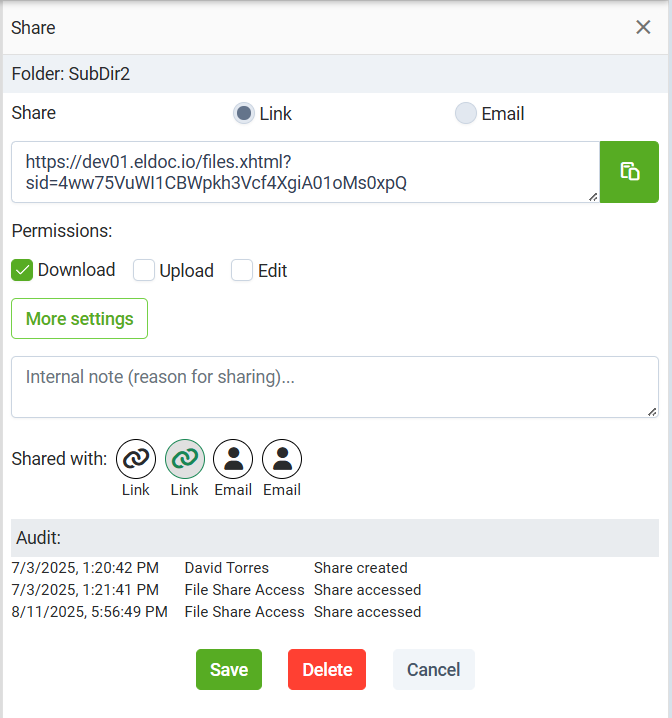
When a file or folder has already been shared, opening the Share settings panel displays the existing shares associated with that object.
The Shared with section shows previously created shares, including both:
Link shares
Email shares
Each existing share is represented by an icon indicating its sharing method.
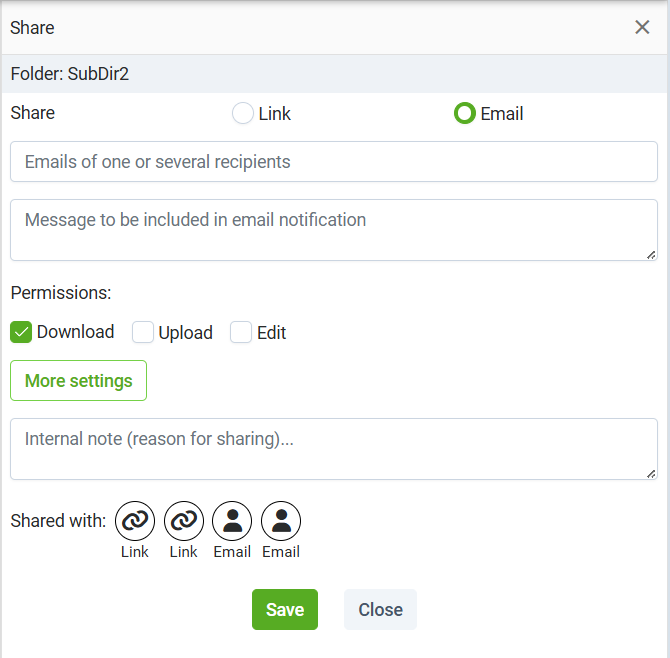
Selecting an Existing Share
To edit an existing share:
open the Share dialog for the shared file or folder;
locate the required entry in the Shared with section;
select the corresponding Link or Email share;
the settings for the selected share are loaded into the dialog;
modify the required settings;
click Save to apply the changes.
Depending on the selected share, the editable settings can include:
sharing method;
recipient email addresses;
email notification message;
Download, Upload, and Edit permissions;
advanced access settings available through More settings;
internal note.
For link-based shares, the existing share URL is also displayed and can be copied for reuse.
Editing Link Shares
When an existing Link share is selected, elDoc displays the current share URL together with its permissions and access settings.
The link can be copied using the copy button next to the URL.
The user can then modify the share configuration, including permissions and advanced access-control settings, and save the updated configuration.
Editing Email Shares
When an existing Email share is selected, elDoc displays the configuration associated with that share.
The recipient information, notification message, permissions, and other applicable settings can be updated and saved.
This makes it possible to maintain an existing share without creating a new one.
Deleting an Existing Share
When an existing share is selected, the Delete button becomes available.
Selecting Delete removes the selected share and revokes access through that share.
Deleting one share does not remove other shares created for the same file or folder.
For example, the same folder can have multiple independent Link and Email shares, and each one can be managed separately.
Share Audit
For an existing share, the Share dialog also displays an Audit section.
The audit history records events associated with the selected share, including activities such as:
Share created
Share accessed
Audit entries include the event date and time, the user or access context, and the performed action, such as share creation or access to shared content.
Additional audit details are available by hovering over the corresponding audit record. The extended information provides more context about the recorded event and helps authorized users review the activity associated with a particular share.
This provides traceability for shared content and allows administrators or authorized users to review when a share was created and when it was accessed.
Managing Multiple Shares
A single file or folder can have multiple active shares at the same time.
For example, the same folder can be shared:
through one Link share for an external recipient;
through another Link share with different security settings;
by Email to one recipient;
by Email to another recipient.
Each share has its own configuration and can be selected, reviewed, edited, or deleted independently.
This allows different recipients and use cases to have different permissions and security settings while referring to the same underlying file or folder.
Email Sharing Workflow
A typical Email sharing process is as follows:
open the Share settings panel for the selected file or folder;
select Email;
enter one or several recipient email addresses;
optionally enter a message to be included in the email notification;
select the required permissions;
optionally open More settings;
configure advanced access settings such as OTP, Password, Expiration date, View mode, and Watermark;
optionally enter an Internal note;
save the share to send the notification.
This workflow is suitable when the sender wants elDoc to notify recipients directly.
Security and Control
elDoc sharing functionality combines convenience with access control.
A share can therefore be configured with:
restricted permissions;
controlled download behavior;
view restrictions;
password protection;
OTP verification;
expiration date;
watermarking;
internal administrative notes.
This allows organizations to tailor sharing behavior to different business and security requirements.
Example Scenarios
Simple Read-Only Share
A document is shared by email with:
Download enabled;
download mode set to Download original file;
all other permissions disabled.
This provides simple controlled access to the file.
Secure External Share
A link share is configured with:
OTP enabled;
a Password defined;
an Expiration date set;
View mode set to PDF;
a Watermark applied;
only Download permission enabled.
This provides a more secure sharing configuration for sensitive content.
Collaborative Folder Share
A folder is shared with:
Upload enabled;
Edit enabled;
optionally Delete enabled;
Share (with inherited permissions) enabled where delegated sharing is required.
This supports collaborative work on shared content.
Last modified: August 24, 2026