Access Control and Permissions
elDoc File Management provides granular access control for files and folders. Permissions determine which users, groups, organizational units and API-accounts can access content and which operations they are allowed to perform.
Permissions can be assigned directly to an individual file or folder, inherited through the file-system folder hierarchy, and, where required, evaluated hierarchically according to the organization's structure.
This allows elDoc to support both simple access-control scenarios and complex enterprise organizational structures.
Opening Permission Settings
Users who have the required administrative permissions can configure access rights for a file or folder using the Permissions panel.
The panel displays the object for which permissions are being configured and provides separate access-control settings for the supported operations.
For folders, the following configuration options are available:
- Inherit permissions
- Replace child permissions
- Show hierarchical permissions
The available permissions include:
- Read
- Read & Edit
- Delete
- Copy
- Download
- Upload/Create
- Share
- Permissions edit
Each permission can be assigned independently to the required users, groups, organizational units, or API-accounts.
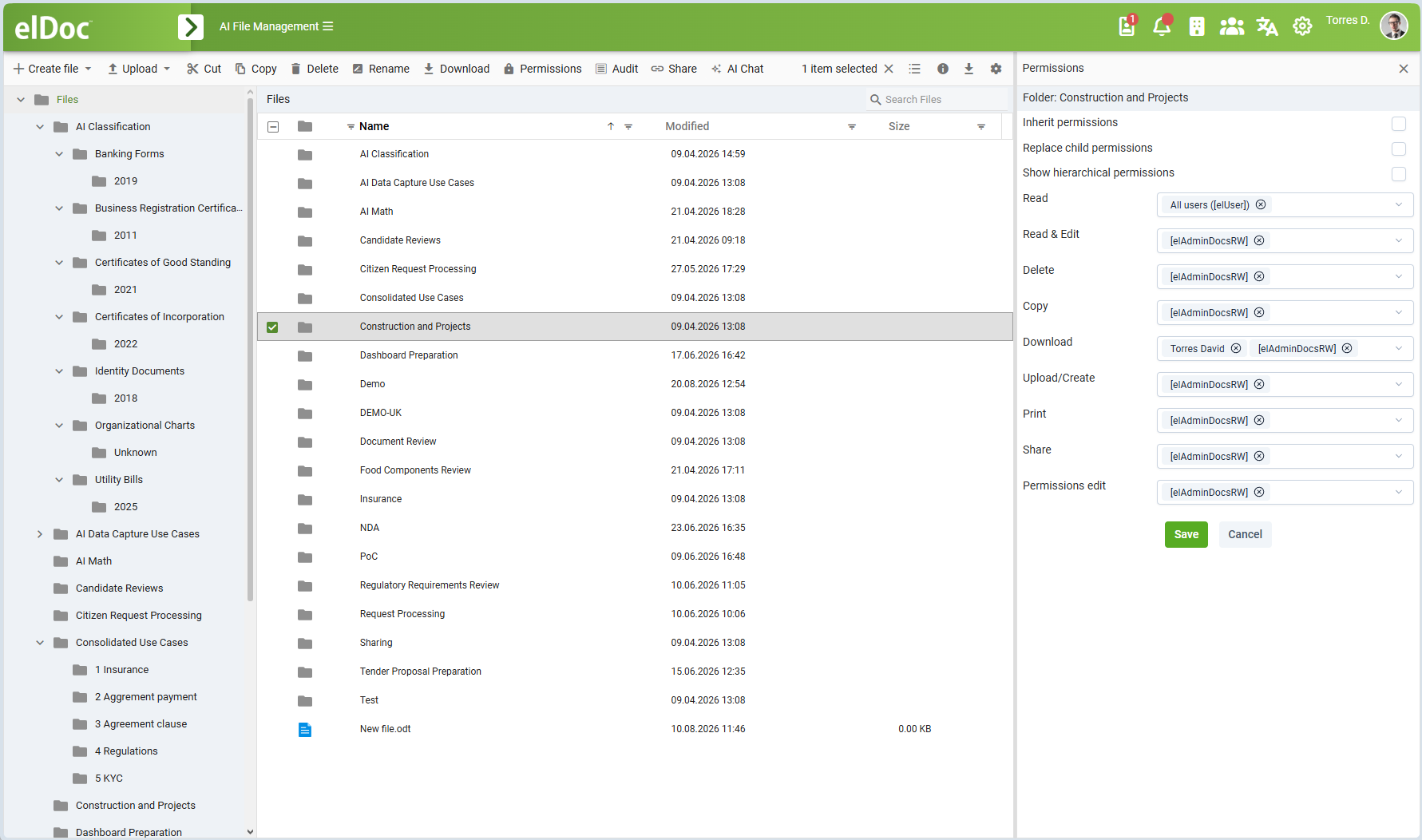
Available Permissions
Read
Allows a user to see and access the file or folder.
The Read permission is the basic visibility permission in File Management. If a user does not have Read permission for a file or folder, that object is not visible to the user and cannot be accessed through the File Management interface.
For folders, Read permission allows the user to see and open the folder and navigate to its accessible contents.
Read permission does not automatically grant permission to edit, delete, copy, download, print, share, or otherwise modify the file or folder. These operations are controlled independently by their corresponding permissions.
Read & Edit
Allows access to the object and permits modification of its content.
For supported document formats, this can include online editing where online document editing is enabled.
Delete
Allows the file or folder to be deleted.
Copy
Allows the file or folder to be copied.
Download
Allows the original file to be downloaded from elDoc.
Download permission can therefore be controlled independently from Read access. For example, a user may be allowed to view a document in elDoc without being allowed to download the original file.
Upload/Create
Controls creation of new content.
For folders, this permission allows users to upload files and create content inside the folder.
Allows supported documents to be printed.
This permission can be controlled independently from Read and Download permissions.
Share
Allows the file or folder to be shared using the file-sharing functionality available in elDoc.
Permissions edit
Allows the user to modify access permissions for the corresponding file or folder.
This is a security-sensitive permission and should normally be granted only to administrators, document owners, or other specifically authorized users.
Assigning Permissions
Each permission contains a list of principals to which the permission is granted.
Depending on the configured elDoc environment, permissions can be assigned to entities such as:
- individual users;
- user groups;
- predefined system or application groups;
- organizational units;
- API-accounts.
For example, Read permission can be granted broadly to all users while Read & Edit, Delete, Upload/Create, or Permissions edit permissions are restricted to a smaller administrative group.
Permissions are evaluated separately for each supported operation. As a result, access can be configured with considerably more precision than a simple read-only/read-write model.
For example, a user may be allowed to:
- read a document;
- download it;
- but not edit, delete, copy, print, or share it.
Permission Inheritance
The Inherit permissions option controls inheritance through the File Management folder hierarchy.
When permission inheritance is enabled, the folder or file receives applicable permissions from its parent folder.
This makes it possible to define access rules at a higher level of the repository and automatically apply them to content stored below that level.
For example:
Projects
└── Construction
    ├── Contracts
    ├── Drawings
    └── Reports
If permissions are configured on the Construction folder and inherited by its child folders, the same rules can automatically apply to Contracts, Drawings, and Reports.
This greatly simplifies administration of large document repositories because access rules do not need to be configured independently for every folder and file.
Inherited and Explicit Permissions
Permission inheritance and explicitly configured permissions should be considered separately.
An administrator can use inheritance to establish the general security model for a repository while defining more specific permissions on particular folders where business requirements differ.
For example:
Projects
└── Construction
    ├── General Documents
    └── Financial Documents
The Construction folder may provide general Read access to the project team, while the Financial Documents folder can be configured with more restrictive permissions.
Replacing Child Permissions
The Replace child permissions option is used when permissions configured for a folder must be propagated to its existing child objects.
This is useful when an administrator changes the security model for an existing folder structure and wants the updated permission configuration to be applied to content located below the selected folder.
Because this operation can affect access to a potentially large hierarchy of files and folders, it should be used carefully.
For example, changing permissions on:
Company Documents
└── Projects
    ├── Project A
    │   ├── Contracts
    │   └── Drawings
    └── Project B
and applying replacement to child permissions can affect access settings throughout the corresponding subtree.
Before using this option, administrators should ensure that child folders do not contain intentionally configured exceptions that should remain unchanged.
Hierarchical Permissions
elDoc additionally supports hierarchical permissions based on the organizational structure.
This mechanism is different from normal folder permission inheritance.
- Folder inheritance propagates permissions through the hierarchy of files and folders.
- Hierarchical permissions propagate access through the hierarchy of organizational units.
The Show hierarchical permissions option displays an additional hierarchical permission field for each supported operation.
For example:
- Read
- Read (hierarchical)
- Read & Edit
- Read & Edit (hierarchical)
- Delete
- Delete (hierarchical)
- Copy
- Copy (hierarchical)
- Download
- Download (hierarchical)
and similarly for the other supported permissions.
Organizational Hierarchy Example
Consider the following organizational structure:
Company
├── Finance Department
│   ├── Accounting
│   └── Treasury
│
├── HR Department
│   ├── Recruitment
│   ├── Payroll
│   └── Training
│
└── Engineering Department
    ├── Design
    └── Operations
Suppose Read (hierarchical) permission is granted to the HR Department for a folder named:
HR Documents
The permission applies not only to the HR Department itself, but also to organizational units subordinated to it.
Therefore users belonging to:
HR Department
├── Recruitment
├── Payroll
└── Training
can receive the corresponding Read access.
Users belonging to unrelated organizational branches, such as Finance or Engineering, do not receive that permission through the HR organizational hierarchy.
This enables access-control policies to reflect the actual organizational structure of the company.
Direct vs. Hierarchical Organizational Permissions
A normal permission assigned to an organizational unit applies directly to the selected unit according to the standard permission evaluation rules.
A hierarchical permission additionally covers organizational units subordinated to the selected organizational unit.
For example, given:
HR Department
├── Recruitment
├── Payroll
└── Training
the following configurations have different meanings:
Read: HR Department
Grants the normal Read permission associated with the explicitly selected HR Department.
Read (hierarchical): HR Department
Grants Read access through the organizational hierarchy so that subordinate units such as Recruitment, Payroll, and Training are also covered.
Hierarchical permissions are particularly useful in large organizations where access is frequently granted according to departments, divisions, branches, regional structures, or similar organizational hierarchies.
Combining Folder and Organizational Hierarchies
Folder inheritance and organizational hierarchical permissions can be used together.
For example, consider this File Management structure:
Corporate Documents
└── HR
    ├── Policies
    ├── Recruitment
    └── Training
and the organizational structure:
HR Department
├── Recruitment
├── Payroll
└── Training
An administrator can grant:
Read (hierarchical): HR Department
on the top-level HR folder and enable folder permission inheritance.
In this scenario:
- the organizational hierarchical permission determines who is covered — the HR organizational unit and its subordinate units;
- folder permission inheritance determines where the permission applies — the HR folder and applicable content below it.
This combination allows complex access-control structures to be configured using a relatively small number of permission rules.
Example: Department-Based Access
A common enterprise configuration may look as follows.
For the folder:
HR Documents
configure:
Read (hierarchical):       HR Department
Read & Edit (hierarchical): HR Management
Permissions edit:          elDoc Administrators
This can provide broad read access across the HR organizational branch while limiting modification rights to a smaller management hierarchy and permission administration to designated elDoc administrators.
A subordinate organizational unit can therefore receive access automatically without administrators having to maintain separate permission assignments for every organizational unit.
Example: Project Folder
For a project folder such as:
Construction and Projects
permissions can be configured independently for different operations.
For example:
Read:                All users
Read & Edit:         Project Administrators
Delete:              Project Administrators
Copy:                Project Administrators
Download:            Selected users + Project Administrators
Upload/Create:       Project Administrators
Print:               Project Administrators
Share:               Project Administrators
Permissions edit:    Project Administrators
This configuration illustrates that elDoc does not treat file access as a single permission.
A user can have Read access while Download, Copy, Print, Share, or Edit remain prohibited.
This is useful when documents contain controlled, confidential, proprietary, or otherwise sensitive information.
Permission Administration Recommendations
When configuring File Management access rights, it is generally recommended to define permissions at the highest appropriate level instead of assigning permissions individually to every file.
For larger repositories:
- establish the main access-control policy on top-level folders;
- use folder permission inheritance for child content where possible;
- assign permissions to groups or organizational units rather than individual users where practical;
- use organizational hierarchical permissions where access follows the company's organizational structure;
- define exceptions only on folders that require a different security policy;
- restrict Permissions edit to a small number of authorized users;
- use Replace child permissions carefully because it can modify access settings across an existing folder hierarchy.
This approach reduces administrative overhead and makes the resulting access-control model easier to understand and maintain.
Permission Model Overview
elDoc File Management therefore supports several complementary access-control mechanisms:
| Mechanism | Purpose |
|---|---|
| Direct permissions | Grant a specific operation to explicitly selected users, groups, or organizational units |
| Folder permission inheritance | Propagate access rules through the File Management folder hierarchy |
| Hierarchical organizational permissions | Extend access rules through subordinate units of the organizational structure |
| Granular operation permissions | Independently control Read, Edit, Delete, Copy, Download, Upload/Create, Print, Share, and permission administration |
| Child permission replacement | Apply an updated permission configuration to existing subordinate content |
Together, these capabilities enable elDoc to implement access-control models ranging from simple departmental repositories to complex enterprise document structures involving multiple organizational levels, business units, projects, and security domains.
Security and GenAI Access
File Management permissions also form part of the security boundary for AI-enabled functionality.
When files are accessed through elDoc capabilities such as search, semantic retrieval, GenAI Chat, RAG, or AI Agents, document access must remain subject to the corresponding user's permissions.
A user should therefore only be able to retrieve or use document content through AI functionality when that user has the required access rights to the underlying documents.
This is particularly important for Retrieval-Augmented Generation, where information from multiple documents may be retrieved dynamically to construct context for a Large Language Model.
The File Management permission model ensures that enterprise document security remains applicable regardless of whether information is accessed through conventional File Management operations or through AI-assisted functionality.
Last modified: August 24, 2026